

What it does
PulseWin lives in the tray next to the clock. Each value you pick is its own icon with a number: CPU, memory, GPU, CPU temperature, network download or free disk space. Drag them in Settings to change their order. PulseWin makes sure Windows doesn't hide them behind the arrow.
Clicking an icon opens the panel. At the top are tiles with rings and small charts, and each one is a tab with details below it:
- CPU: a chart of the last minutes, the load of every core and the processes using the most CPU.
- GPU and Memory: charts, committed memory and the programs using the most of it.
- Temperature: CPU, graphics card and drives, NVIDIA fan, power draw.
- Disk: free space on each drive, reads and writes.
- Network: download and upload, the connection, the local network address.
- Battery on laptops: charge and time left.
- Computers: Macs running Pulse and other PCs running PulseWin as cards with rings. Click a card for more: processes, Docker containers, network, fans, power draw.
Hover over a chart to see the time and value at that point. The panel always keeps the same height, so the tiles stay put under the mouse; scroll with the wheel for what doesn't fit.
The panel and the settings window are light or dark, following Windows. Open Settings with the small gear in the panel's bottom-right corner or from the icon menu.
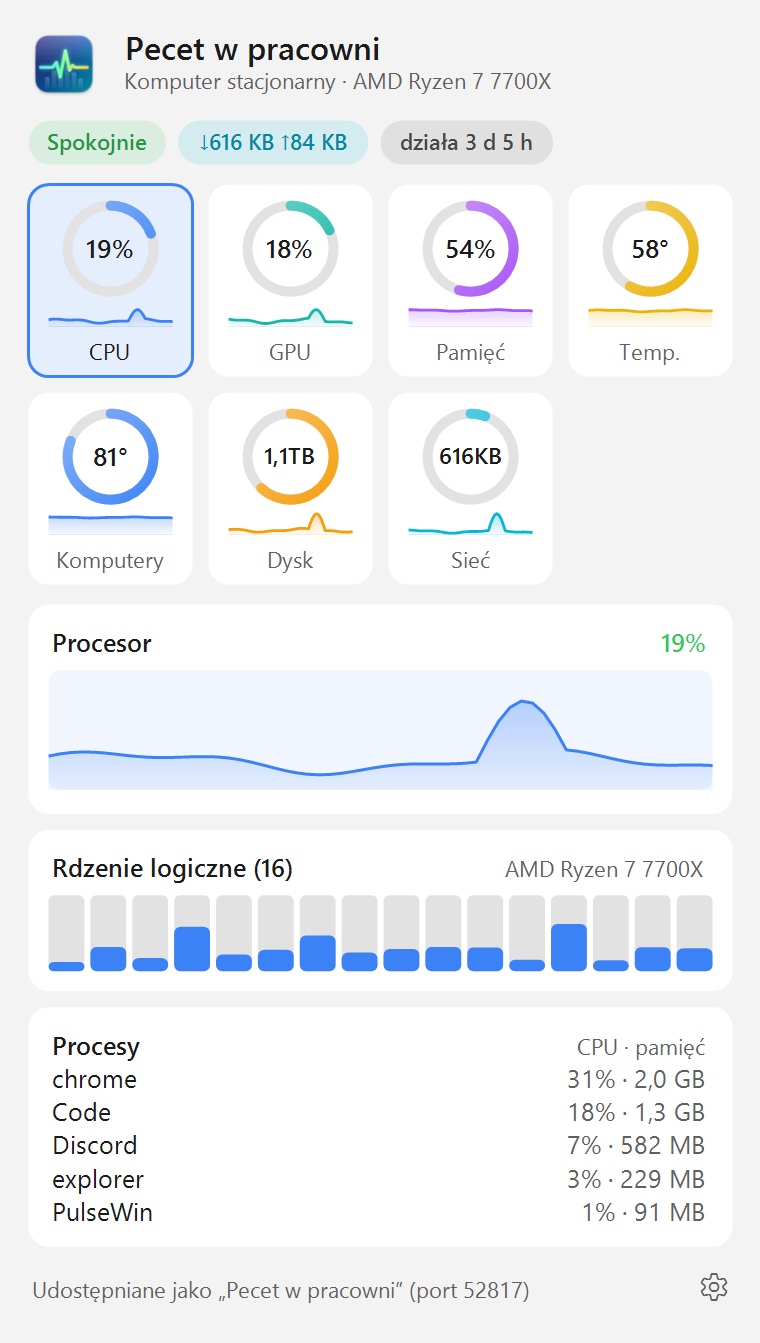
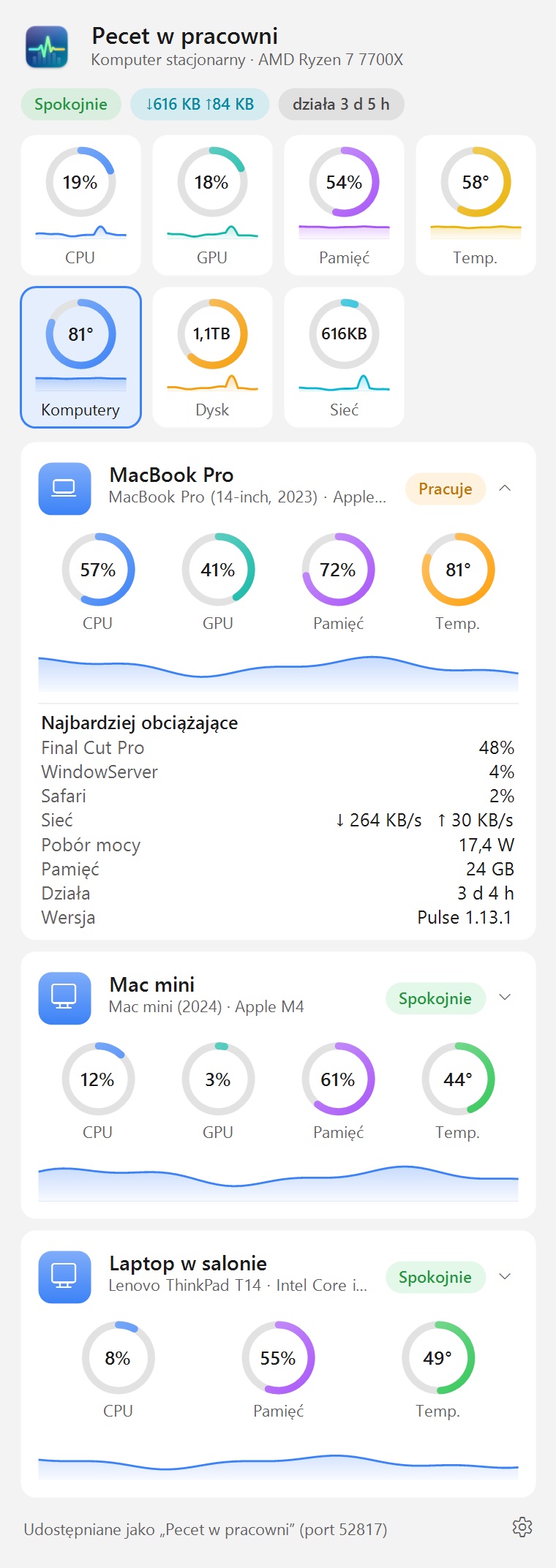
Macs and other computers on the network
PulseWin talks to Pulse on Macs. The PulseWin panel shows the load, memory, temperature and busiest processes of every Mac running Pulse on the local network, and the Macs see this PC in their “Other computers” panel, with a PC icon. Two computers running PulseWin see each other the same way.
There is nothing to set up: the computers find each other. Each one only needs sharing turned on (in PulseWin: Settings → This computer on the network), where you can also give it the name the others see.
CPU temperature
Windows doesn't give programs the CPU temperature. It can only be read from the processor's own registers, which takes a driver running in the system kernel and administrator rights. PulseWin uses the PawnIO driver: free, open and signed, also used by other hardware monitors.
- The x64 installer can install PawnIO (a checkbox during setup).
- When it starts with Windows, PulseWin gets administrator rights at every sign-in without asking.
- Without PawnIO, PulseWin shows what Windows offers itself: motherboard thermal zones, power draw, NVIDIA temperature and fan, and drive temperatures.
- ARM processors don't let programs read their sensors, so there is no CPU temperature there.
Settings show the state of the readout under “Temperatura procesora”.
Requirements
- Windows 10 or 11, 64-bit.
- An x64 (Intel, AMD) or ARM processor. Each has its own installer.
- Installing needs administrator rights.
- Polish only for now.
Installation
- Download the installer for your processor and run it.
- The installer isn't signed with a certificate yet, so Windows may show “Windows protected your PC”. Click More info, then Run anyway.
- Choose whether PulseWin starts with Windows and whether to install PawnIO.
- After installing, the icons appear next to the clock. Right-click one to open Settings.
The installer also adds a Windows Firewall rule so Macs can fetch the readings, for private networks only. Uninstall PulseWin like any program: Settings → Apps.
Updates
Once a day PulseWin checks kakaki.pl for a new version. If there is one, it shows a notification and an “install update” item in the icon menu. It installs with your consent, in the background, and PulseWin restarts itself. Before installing it checks the signature of the version information and the checksum of the downloaded file. You can check manually from the icon menu or in Settings, where automatic checks can also be turned off.
Privacy
PulseWin takes all readings from Windows on your computer. No accounts, ads or analytics. It shares readings only on the local network and only if you allow it. It connects to the internet only to check for updates on kakaki.pl.
What's new
PulseWin 0.4.0 · 11 Nov 2026
A new panel: the ring tiles work as tabs with details, as in Pulse for Mac. Other computers as cards with rings that open with a click. Time and value under the mouse on charts. The panel keeps one height. Tray icons always stand in the order from Settings. Windows PCs now see each other on the network.
PulseWin 0.3.2 · 11 Nov 2026
Set the order of the tray icons by dragging them in Settings. A new “Disk” icon with free space on the system drive, and free space of each drive in the panel. A settings gear in the corner of the panel. Icons no longer end up behind the arrow after installing.
PulseWin 0.3.1 · 11 Nov 2026
Updates now install properly while PulseWin is running: the installer closes it and starts it again.
PulseWin 0.3.0 · 11 Nov 2026
A new settings window in the style of the panel, light or dark like Windows. Automatic updates from kakaki.pl, with a signature and a check of the downloaded file.
PulseWin 0.2.0 · 11 Nov 2026
First version: tray icons, a panel with charts, its own sensor readout (CPU temperature with PawnIO), exchanging readings with Macs, an installer.
Questions
Doesn't PulseWin itself slow the computer down?
No. It measures every 2 seconds (adjustable in Settings) and usually uses a fraction of a percent of the CPU. It collects the process list only while the panel is open or a Mac asks for it.
Why does Windows warn about the installer?
Because the installer isn't signed with a paid certificate yet, and SmartScreen warns about every new unsigned program. It doesn't mean anything is wrong with it.
I don't see the CPU temperature.
Look at Settings, section “Temperatura procesora”: it says what's missing (PawnIO or administrator rights) and has buttons that fix it.
I found a bug or have an idea.
Write to kontakt@kakaki.pl.