
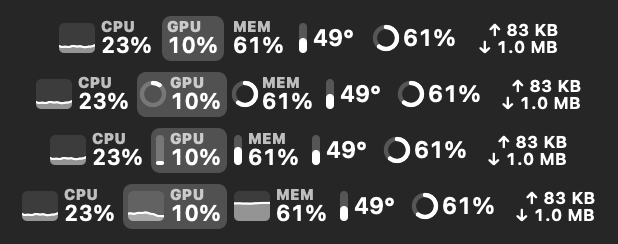
What it does
Pulse lives in the menu bar and shows your Mac's key stats. Keep everything in one item or give each module its own. Click a value to open a detailed panel.
- Four value styles: text, ring, bars or a mini graph. Set the style, label and order for each value.
- History for 2 minutes, an hour, a day, a week and 30 days. Hover a chart to see the exact value, and export the data to CSV.
- The processes that load the CPU, memory and disk the most. Right-click to quit one that hangs.
- Notifications for sustained full load, high temperature, thermal throttling, memory pressure, low disk space and low battery.
- Critical values pulse in the menu bar and change color under heavy load.
- A desktop widget and launch at login.
- Stays out of the way: hides in full screen apps and while mirroring a display, and narrows itself next to the notch.
Panels
Every module has its own detailed panel:
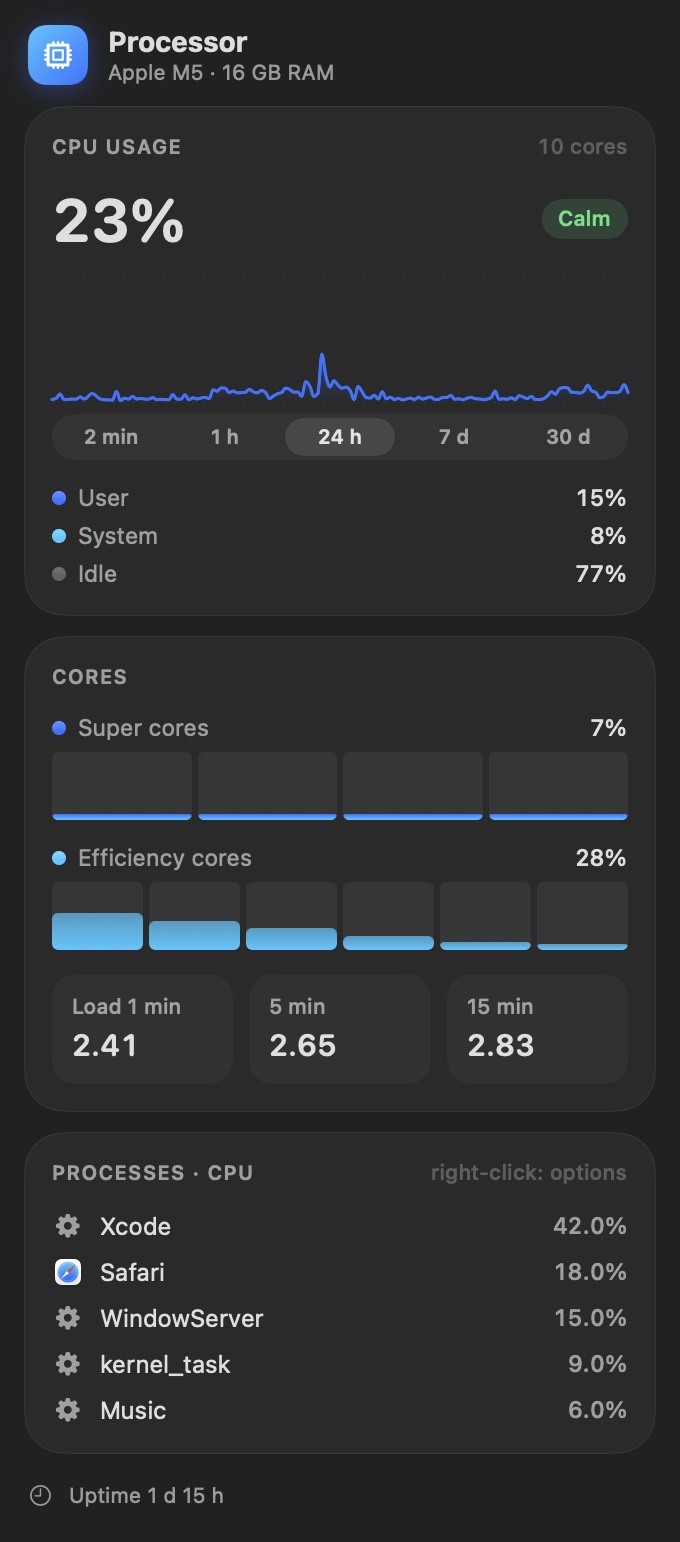
- CPU: load, performance, efficiency and super cores, load average.
- GPU: usage, renderer and tiler load, GPU memory.
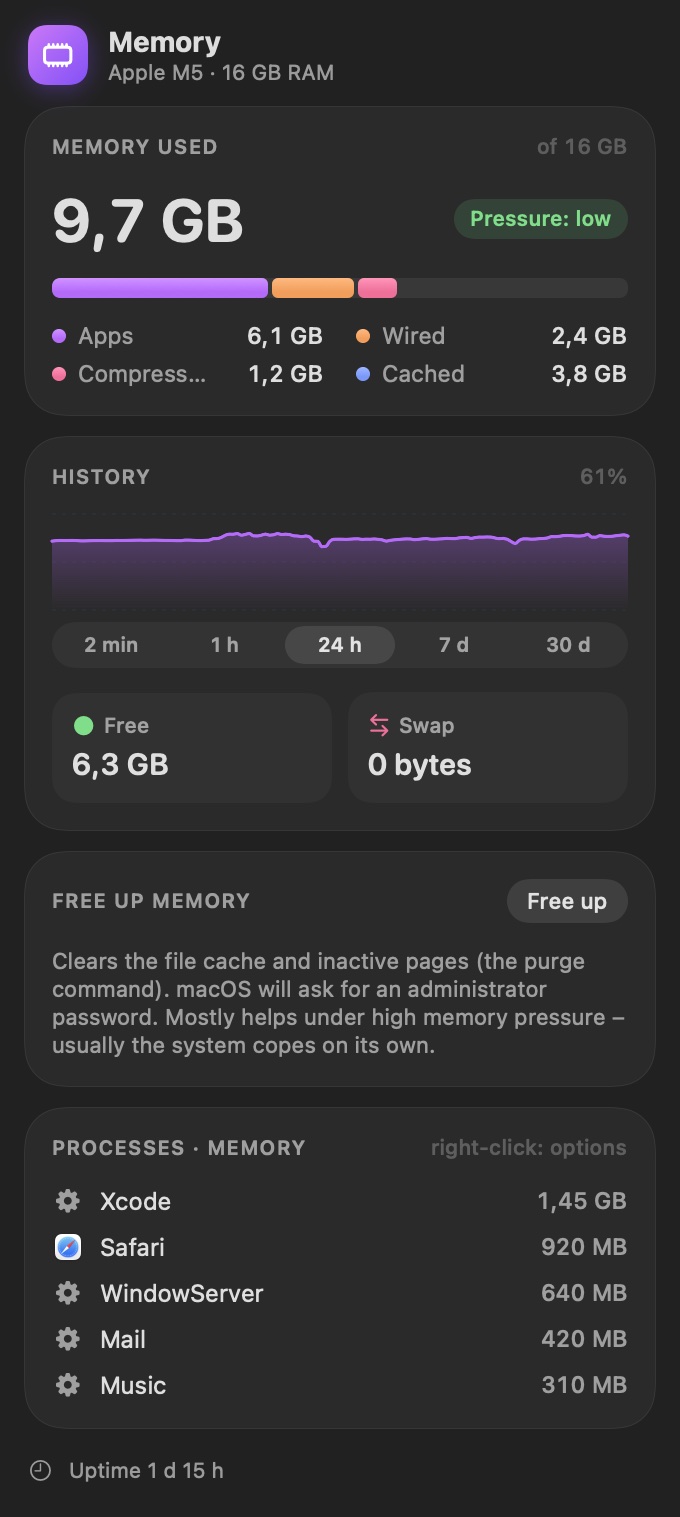
- Memory: pressure, app, wired and compressed memory, swap. Free up memory with one click.
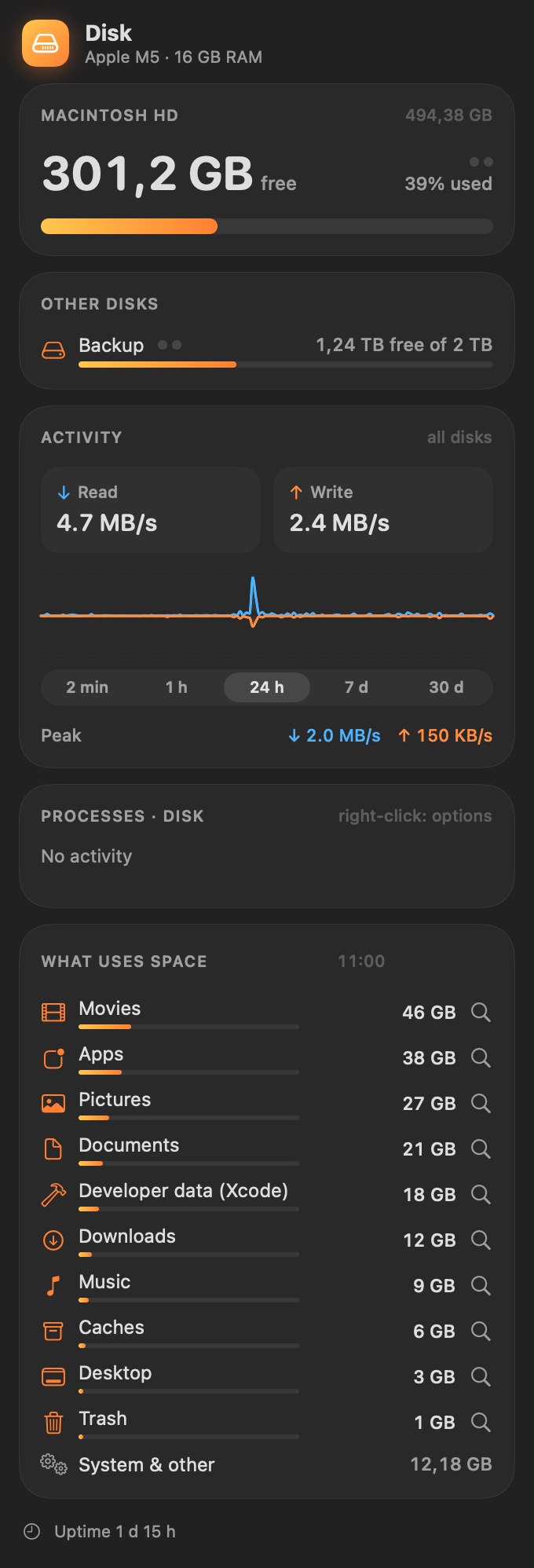
- Disk: free space as percent or GB/TB, several drives, read and write speed, activity per drive and what takes up the space.
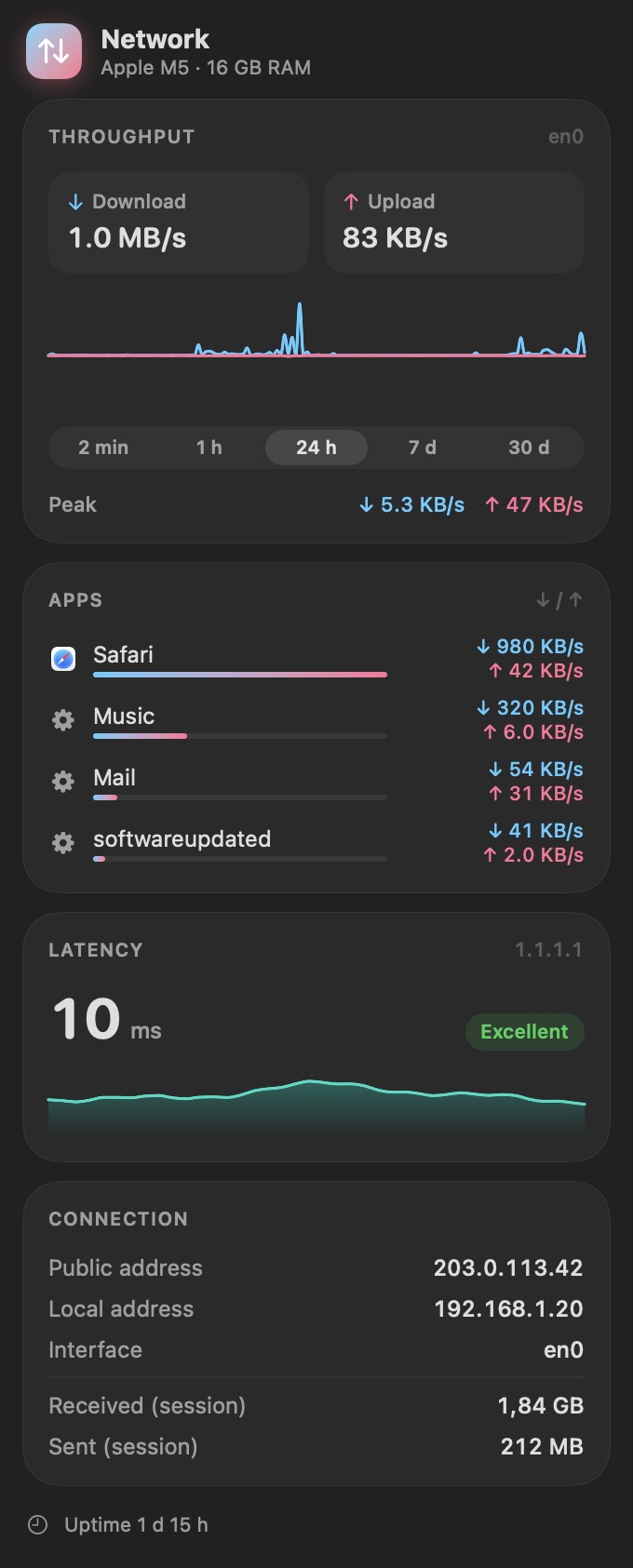
- Network: download and upload, traffic per app, latency, local and public IP.
- Sensors: CPU, GPU, SSD and battery temperatures, fans, thermal state and power draw. Click a sensor to see its history.
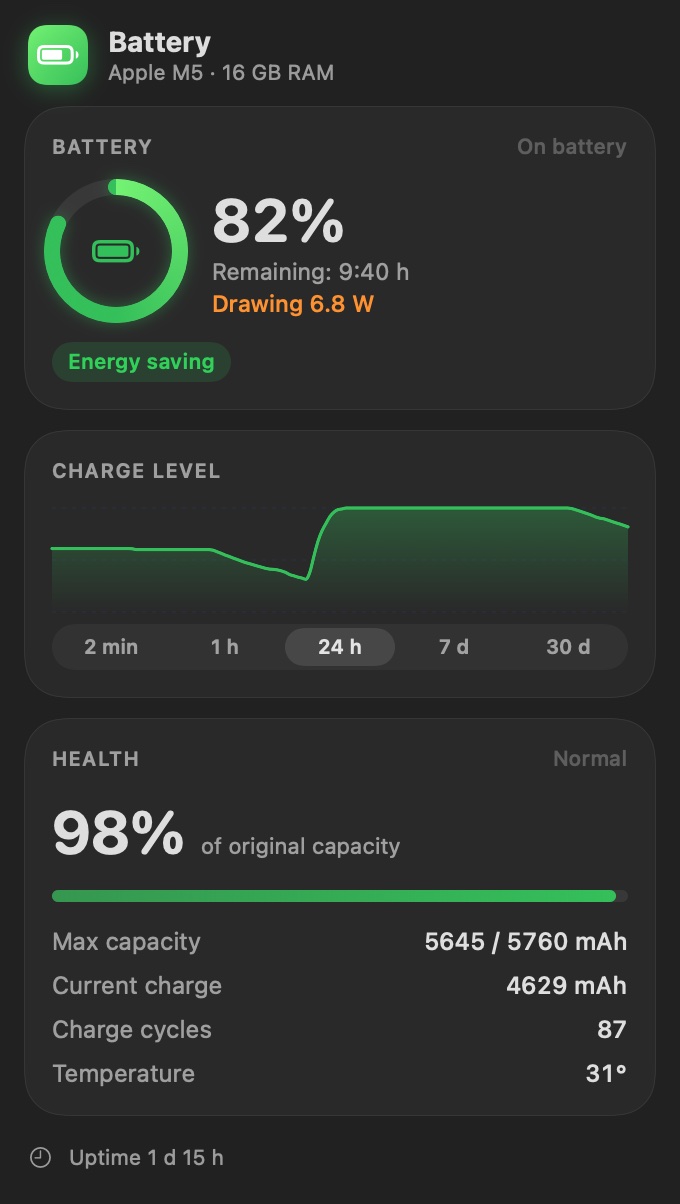
- Battery: charge, health, cycle count, charging power and adapter wattage.
- Other Macs: load, temperatures, fans and processes of your other Macs running Pulse on the local network.
Other Macs on the network
Got several Macs? Pulse shows them all in one panel: load, memory, temperature, fan speed and the processes keeping them busy. Hear one working hard? Check it without leaving your desk.
On every Mac you want to see, turn on sharing in Settings → Other Macs. The data never leaves the local network, and nothing can be changed remotely.
The hottest or busiest Mac can also be a value in the Overview and a tile in its panel. You choose whether to show temperature, CPU, memory or fan, and from which Mac. Give each Mac its own name that the others see.
Fan control
Mac too loud or too hot? Pulse sets the fan speed from a temperature curve you draw yourself. It works on Intel Macs and on Apple Silicon Macs with a fan. The first time, macOS asks you to approve a system helper, and Pulse shows you where.
Requirements
- macOS 15 Sequoia or later.
- A Mac with Apple Silicon or an Intel processor (one app for both).
- English, German and Polish.
Installation
- Click Download Pulse and download the Pulse-…dmg file from the latest release.
- Open it and drag Pulse into Applications.
- Launch Pulse. It appears in the menu bar, with no Dock icon. Open Settings from any panel.
Pulse is signed and notarized by Apple. It installs new versions itself, and you can check by hand in Settings.
Privacy
Pulse reads everything locally from macOS on your Mac. No accounts, ads or analytics. It only goes online to measure network latency, look up your public IP address and check for updates.
What's new
Pulse 1.11.1 · 11.11.2026
Other Macs in the Overview: a menu bar value and a tile, with a choice of value (temperature, CPU, memory, fan) and Mac. A custom network name for this Mac. Narrower menu bar values with no empty space after the number.
Pulse 1.11 · 11.11.2026
New Other Macs module: load, temperatures, fans and processes of your other Macs running Pulse on the local network. Turn on sharing in Settings on each Mac.
Pulse 1.10.2 · 09.11.2026
Much lower CPU use while the panel is open.
Pulse 1.10.1 · 09.11.2026
Clicking in the Overview opens the right item, CPU temperature shows the hottest core, and the menu bar returns to full size after being squeezed.
Pulse 1.10 · 09.11.2026
Fan control now also on Apple Silicon, with its own Settings page. History for individual sensors and fans, a readable component list, CPU split by core type. Activity per disk, processes by disk use and peak speeds.
Pulse 1.9 · 09.11.2026
On Intel Macs the fan can now follow your own temperature curve (Settings → Sensors).
Pulse 1.8 · 08.11.2026
Hovering over a chart now shows the value at that point.
Pulse 1.7 · 08.11.2026
Pulse now also runs on Intel Macs and on macOS 15 Sequoia.
Questions
How much does it cost?
Nothing. Pulse is free, and its source code is on GitHub.
Doesn't Pulse slow down the Mac itself?
No. With the panel closed it uses a fraction of a percent of CPU, and usually a few percent with the panel open. On battery and in Low Power Mode it can refresh less often.
Why does freeing up memory ask for a password?
It uses the system purge command, which needs administrator rights. You type the password in a macOS dialog, and Pulse never sees it.
I found a bug or have an idea.
Write to kontakt@kakaki.pl or open an issue on GitHub.