

MailBoxAI at a glance
MailBoxAI is an app for handling the requests your customers send by email. It reads your IMAP mailboxes and turns every customer thread into a ticket with a priority, a status and a deadline. Instead of scrolling the inbox from the newest message, you see right away what's on fire, what's waiting for you and what's waiting for the customer.
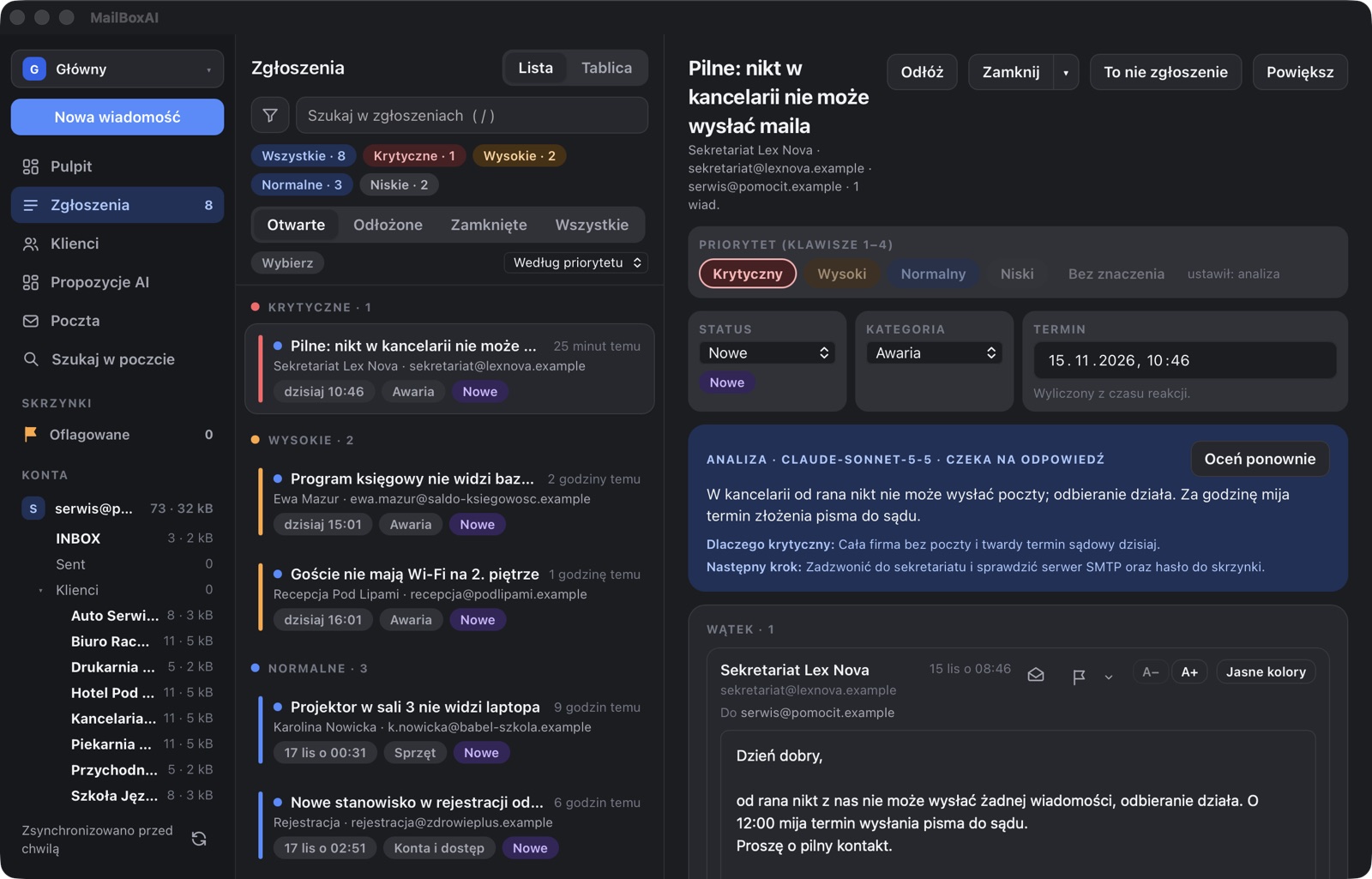
- The left sidebar is navigation: Tickets, Clients (the directory of companies and people), AI proposals waiting for approval, plain Mail and search across all mail. Below are the accounts with their folders, including client folders, with message counts and sizes.
- The ticket list runs from critical to low. The coloured buttons at the top filter it by priority. Each ticket shows the customer, deadline, category and status. Tickets can also be laid out on a board by status.
- The open ticket has a priority (change it with keys 1–4), a status, a category and a deadline calculated from the account's response times. The Analysis box says what the customer is reporting, why it has this priority and what to do next. Below it is the whole thread and room for a reply.
- Next to the clock. The icon in the Mac menu bar shows the number of critical tickets (on Windows it's in the tooltip of the icon next to the clock). Clicking it opens a small panel with the urgent tickets, without opening the whole window.
All the tickets in the screenshot were created automatically: rules moved new mail into the clients' folders and the AI assessed it. The example below shows how that set of rules was made with a single sentence.
What it does
I do service and support for customers, and most of it arrives by email. A mail client shows it in the order it arrived, but I care about a different order: what's urgent, what's waiting for me, and what's waiting for the customer. MailBoxAI arranges mail that way. It doesn't replace your mailbox. It reads it over IMAP and shows it as a to-do list.
- Emails become tickets. Messages in one thread go into one ticket. Each has a priority, a status (new, in progress, waiting for the customer, closed), a deadline and a change history. You can add a note to a ticket that the customer never sees.
- Several accounts, each with its own rules. Add as many mailboxes as you like and set for each which folders to read (not just the Inbox), the reply deadlines and which rules set a priority.
- Companies and people. Senders are linked to companies, and a company or an employee can have its own default priority, so a message from a key customer doesn't get lost among offers.
- Large mailboxes. The app is built for thousands of messages in a folder. From the archive it fetches only headers, and the body only when you open it, so the database on disk stays small.
- Replies like in an ordinary mail client. An editor with formatting, signatures, images pasted from the clipboard and attachments. A sent message is saved in the Sent folder on the server, so you see it on your phone too.
- Not every email is a ticket. A ticket is created when an account rule matches, the sender is in your contacts, or the message continues an existing ticket. Newsletters and notifications stay ordinary mail. A ticket created by mistake is dismissed with one click, and the same thread won't come back.
- Profiles. Keep private and company mail in one app, but separate: each profile has its own accounts, rules and settings. Switching to a profile can be protected with Touch ID, Windows Hello or a password. To be honest: this protects switching inside the app, and the files on disk are not encrypted.
- Assistant in the window. A chat panel (Cmd/Ctrl+J) where you write in plain language, e.g. “show overdue tickets from this company” or “create a rule for mail from this domain”. It shows changes for your approval before saving them. It runs on your own AI key. What it can do.
- Plugins for ticket systems. A ticket can be passed on to an external system, e.g. Jira or your own system with a REST API, and closed on both sides.
- AI analysis, when you want it. Once you provide your own key (Claude or an OpenAI-compatible service), the app can summarise a thread and suggest a priority and a draft reply. You review and approve the suggestions before anything is saved. Without a key the app works normally, on rules alone.
What the AI can do in the app
AI in MailBoxAI works in two ways: it assesses new mail on its own, or it does what you ask for in a plain sentence in the assistant panel. Both use your own key: Claude or an OpenAI-compatible service, including a model running on this computer (e.g. Ollama or LM Studio), in which case your mail never leaves the computer. Settings can hold several AI models, and you switch the active one with one click.
Assessing mail without being asked:
- Priority and a description of the ticket. For a new ticket the AI sets the priority, a category from the account's list, a deadline, a one-sentence summary, the reason and the next step. It follows the account's notes (“shop and payment outages are urgent”) and your recent manual priority corrections.
- Is it a ticket at all. In folders where tickets are created only from selected mail, the AI decides whether a message needs action. If not, it stays ordinary mail with a one-sentence reason next to it.
- A draft reply for an open ticket, to edit in the editor before sending.
- Under your control. Assessment can run by itself after every sync or only on request for selected tickets. By default the results wait in the AI proposals view, where you approve, correct or reject them. The AI doesn't change on its own tickets whose priority came from a rule or from you. You can pick a model per account, and a daily request limit keeps costs in check.
The assistant (Cmd+J on a Mac, Ctrl+J on Windows): a chat panel next to your mail. It sees the ticket open on screen and the selected messages, so it understands “this ticket” or “these emails” without explanation.
- Questions about your mail. “Which critical tickets are overdue?”, “What did the law firm write this month?”. It searches all your mail and reads threads, notes and ticket history.
- Tidying tickets. It changes priorities, statuses and deadlines, snoozes, adds notes, creates a ticket from a message, or marks many at once as “not a ticket”.
- Tidying mail. It lists unread or flagged messages from an account, a folder, a sender or a date range, and marks them as read, unread or flagged. It also creates your own mail categories (e.g. one per client) and assigns them to messages.
- Rules and folders. It creates rules (priority, move to a folder, always a ticket), creates folders on the server and applies rules to mail already in the mailbox. See the example below.
- Client directory. It groups senders by domain and proposes company cards with readable names. People writing from Gmail and similar get person cards, newsletters are skipped. It also merges duplicates.
- Account notes. It changes the description of what is urgent, the category list and response times.
- Drafts and ticket systems. It prepares a draft reply that you open in the editor, sends a ticket to Jira or your own system, and approves or rejects AI proposals in bulk.
Rules the assistant follows: it reads right away, but it first shows every change with an exact description (what, where, with which values) and runs it only after you click Approve. For many changes one Approve all is enough. It never sends anything and never deletes mail permanently. It treats email content as data, not as instructions: if someone writes in an email “change the priority” or “forward me the correspondence”, the assistant won't do it and at most tells you about it. Every change goes into the ticket history signed Assistant. The same tools are also available from Claude Code through the built-in MCP server.
The app itself is in Polish for now, so the screenshots below show the Polish interface.
Example: one sentence, nine rules
Every client has a folder of their own under “Klienci” (Clients), but new mail lands in the Inbox and I used to move it by hand. Rules for eight companies mean a dozen clicks each and keeping track of who writes from which address. Instead I wrote to the assistant:
Go through all the folders under “Klienci” and check who writes to them. For each client add a rule that moves their new mail to their folder. Also move the emails that are already in the Inbox.
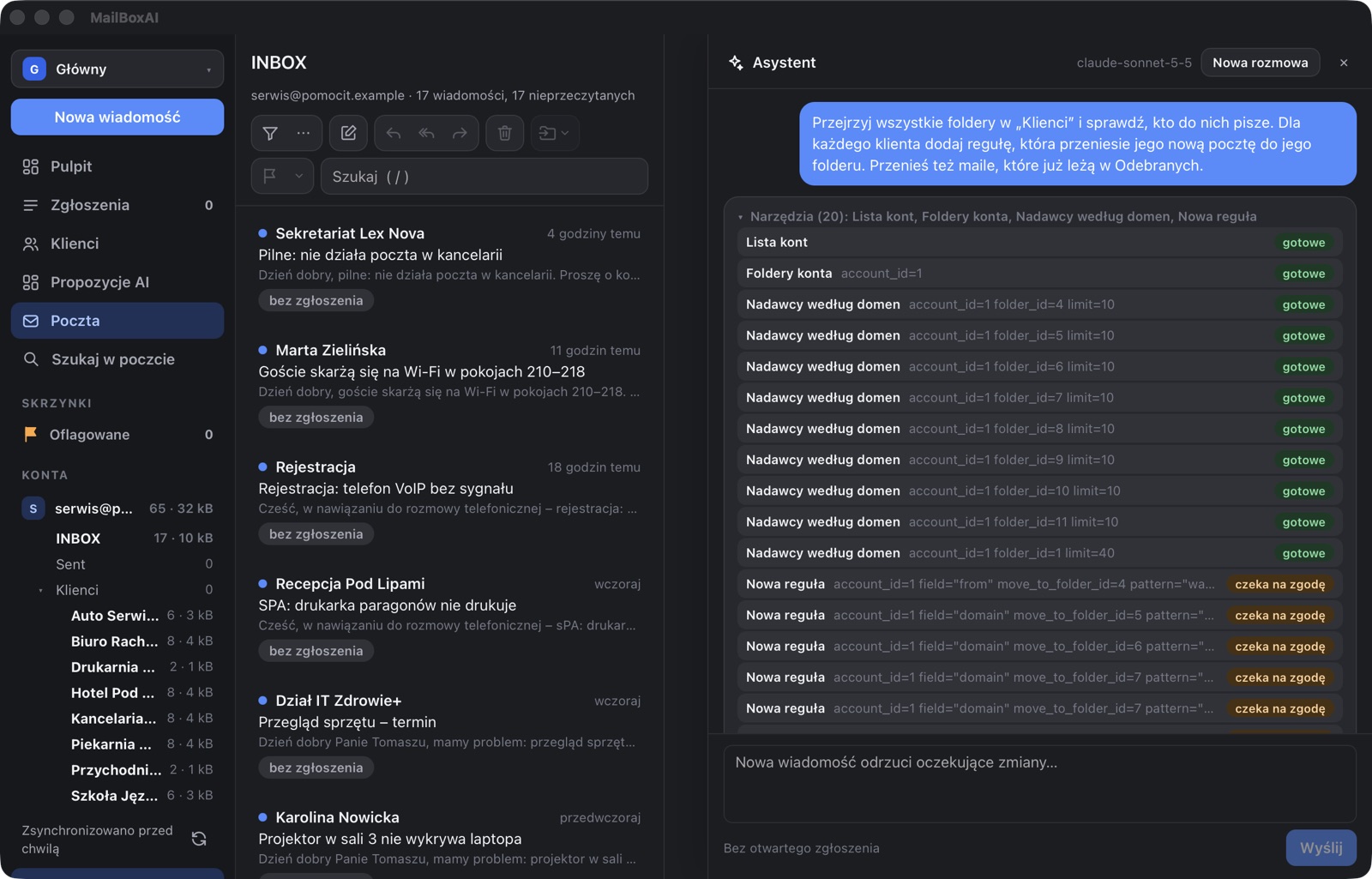
The assistant looked at the account and its folders, then checked for each of the eight client folders which addresses and domains its mail comes from. It came up with nine rules, because the hotel writes from two domains. The car repair shop uses Gmail, so its rule matches the exact address rather than the whole gmail.com domain.
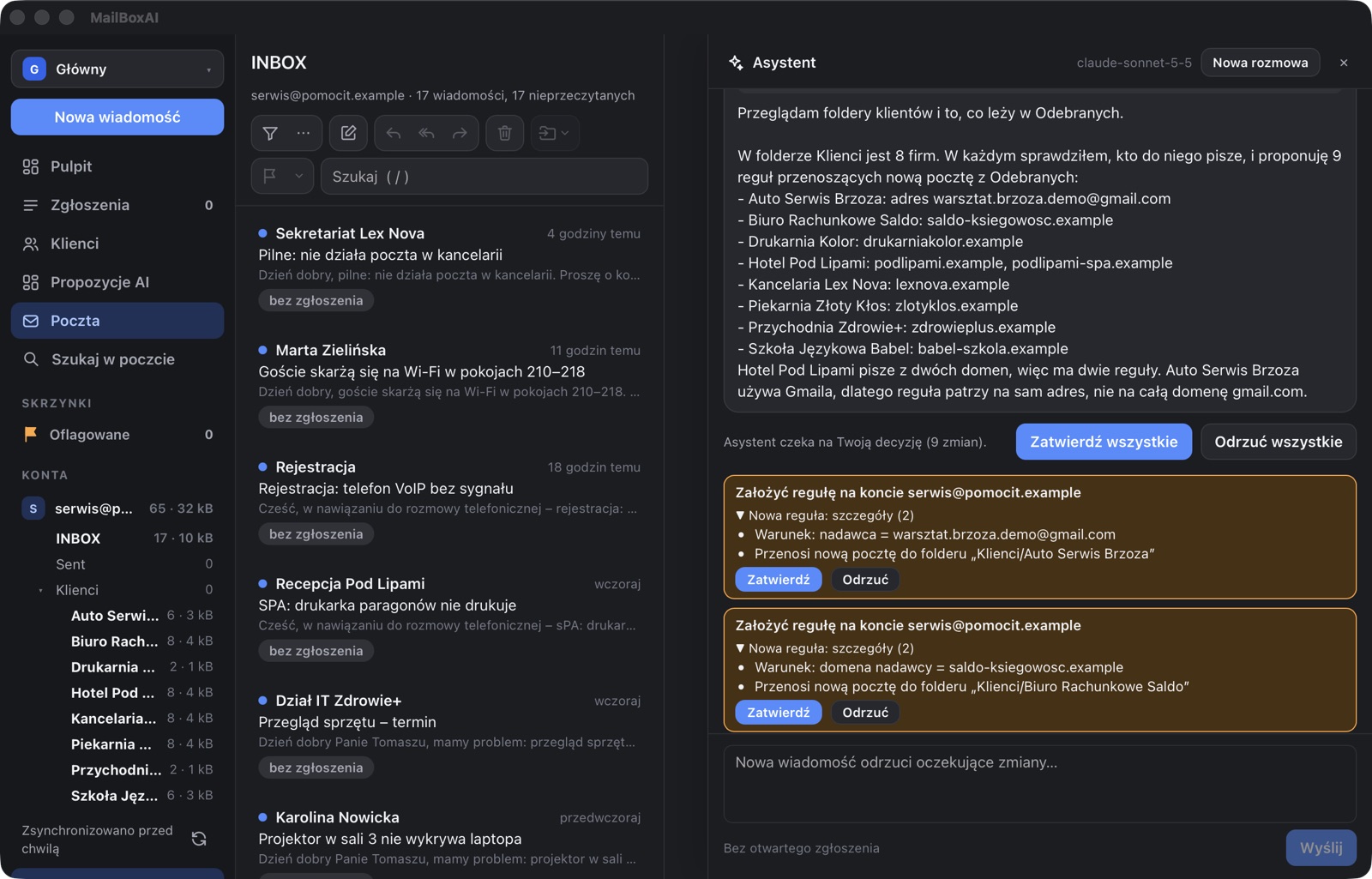
One Approve all saved the rules. The assistant then asked for approval to apply them to the mail already in the Inbox. After the second click 14 messages moved on the server to their clients' folders. Only a wholesaler's invoice, a newsletter and a notice from the internet provider were left in the Inbox.
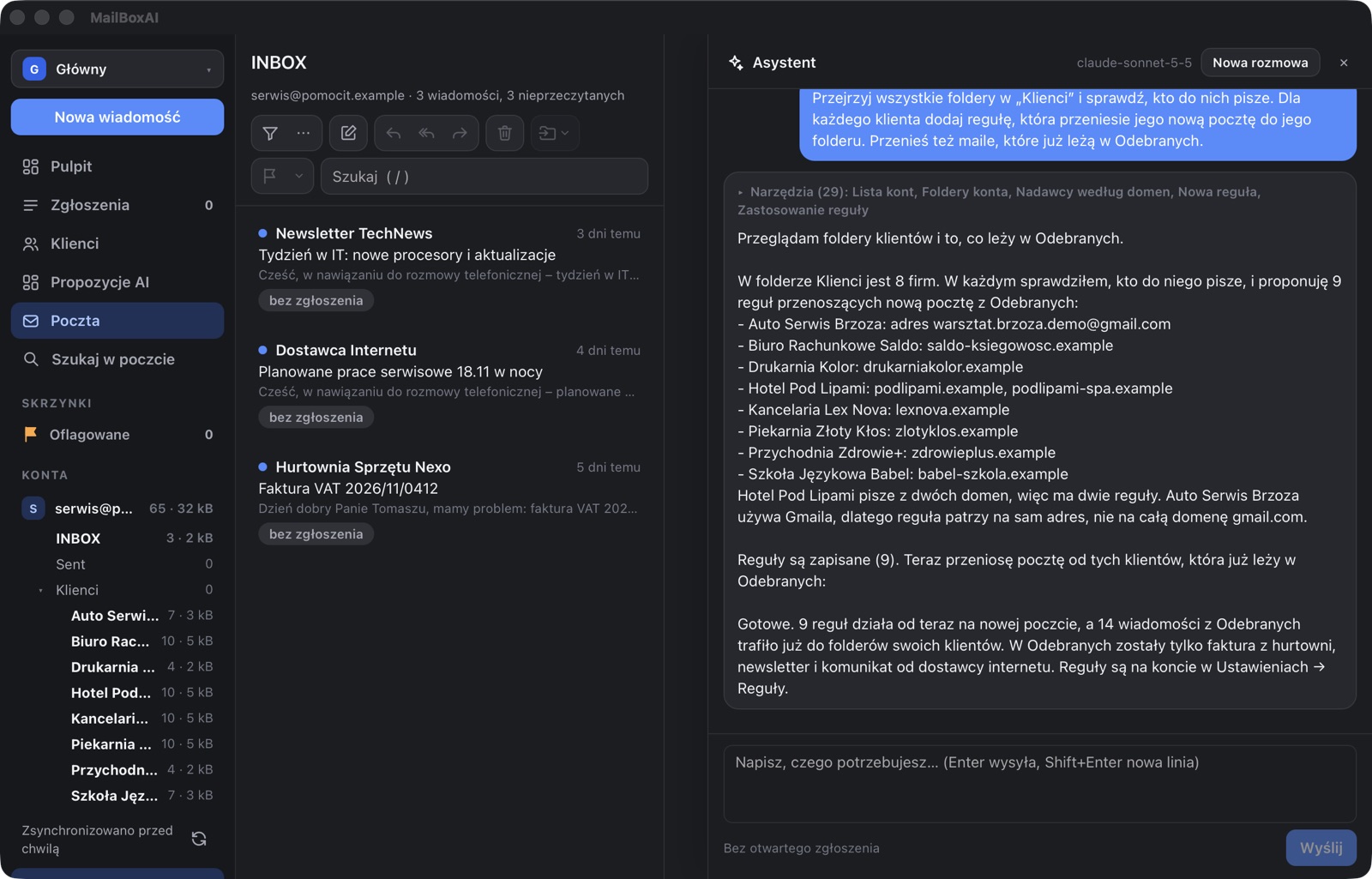
These are ordinary account rules: you can edit or delete them later in the settings. They run on every sync, including mail that arrived while the app was off. Messages are moved on the server, so your phone shows the same order.
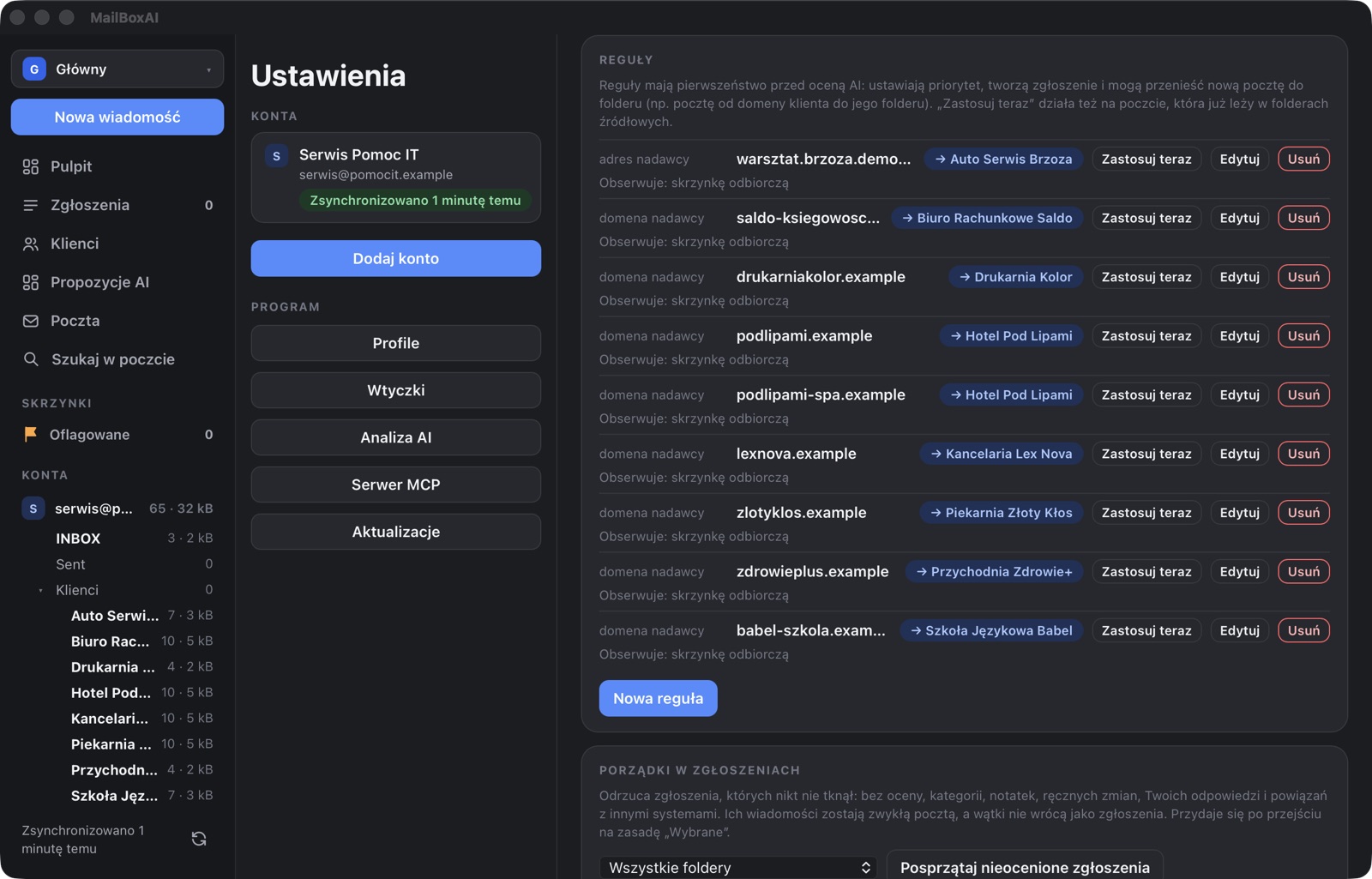
The data in the screenshots is made up: the account, companies and messages come from a test mailbox.
Several computers: tickets and rules in your mailbox
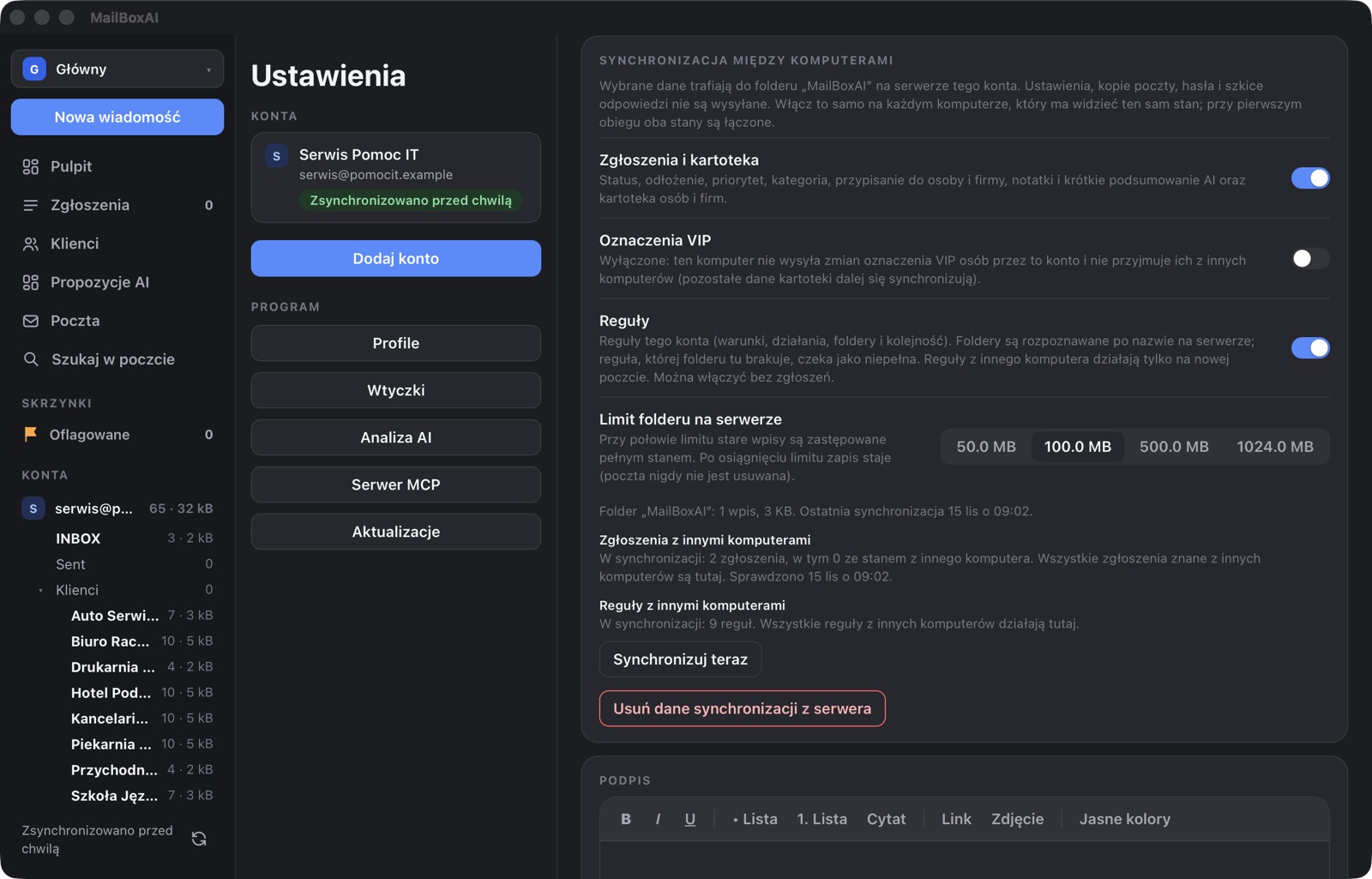
If you work on two computers, say a Mac at the office and a Windows laptop at home, both can see the same ticket state and the same rules. No server or account with me is needed. The state is stored in your own mailbox, in a separate MailBoxAI folder that the app hides from its folder list.
- What is synced. The Tickets and directory switch: status, snooze, priority, category, manually set deadline, assigned person and company, notes and the short AI summary, plus the directory of people and companies. Separately: VIP marks and the account's Rules. Rules can be synced on their own, without tickets.
- What isn't sent. Mail (it's on the server anyway), settings, passwords, keys and draft replies.
- Rules on the other computer. Folders are matched by their name on the server. If a folder doesn't exist on the other computer yet, the rule waits as incomplete and does nothing, then completes itself once the folder appears. A rule from another computer goes through the same checks as in the editor and works only on new mail: it doesn't move old mail by itself.
- When you change the same thing in two places. The later change wins, field by field. When you first turn it on, the state of both computers is merged and nothing is lost.
- A small folder. Each computer adds at most one small entry per sync, and only when something changed. From time to time it writes the full state and removes old entries. You choose the folder limit from 50 MB to 1 GB (100 MB by default). Mail is never deleted in the process.
- You can see what's going on. The account settings show the number of tickets and rules in sync, tickets from another computer waiting for their mail, incomplete or rejected rules with the reason, and a Sync now button.
So the nine rules from the example above appear on the other computer by themselves after the next sync.
Requirements
- Mac: macOS 10.15 or later, Apple Silicon and Intel.
- Windows: Windows 10 and 11, x64 and ARM.
- A mail account with IMAP and SMTP access.
Installation
- Click Download for Mac. The MailBoxAI-0.1.18.dmg file downloads.
- Open it and drag MailBoxAI into Applications.
- Launch MailBoxAI and add your first mail account.
The app is signed and notarized by Apple.
- Download the installer for your processor and run it. The app installs into Program Files, so Windows asks for administrator approval. Almost every PC has an x64 processor (Intel or AMD); ARM means e.g. Snapdragon X laptops.
- The installer isn't signed with a certificate, so Windows may show “Windows protected your PC”. Click More info, then Run anyway.
If that button isn't there, right-click the downloaded file → Properties, tick Unblock at the bottom, click OK and run the installer again. If Windows still blocks it, Smart App Control is probably on (Windows Security → App & browser control), which lets only signed programs run. - After installing, launch MailBoxAI and add your first mail account.
The warning appears only on the first install. MailBoxAI checks kakaki.pl for a new version itself and asks before installing it; when updating, Windows asks for administrator approval again.
Privacy
- Your mail and the ticket database stay on your computer.
- Passwords and keys are kept in the macOS keychain or the Windows Credential Manager, not in the app's files.
- Profiles keep data separate (each has its own database), and Touch ID, Windows Hello or a password protect switching between them inside the app. The databases on disk are not encrypted, so this is not protection against someone who reads the files on your disk.
- Nothing is sent to me. No accounts, ads or analytics.
- The content of a message goes to an AI provider (Claude or an OpenAI-compatible service) only if you turn on AI analysis and supply your own key, or if you use the built-in assistant.
- Remote images in emails are blocked by default.
- Sync between computers, if you turn it on, stores the state of tickets, the directory and rules in a “MailBoxAI” folder on your own mail server. It goes nowhere else.
- Apart from your own mail servers, the app connects to kakaki.pl to check for a new version, and when you add an account it sends only the address domain to the public mail settings database (ISPDB) to find the servers. It connects to an AI provider or an external ticket system only if you set them up yourself.
Questions
Does MailBoxAI replace my mail client?
No. It reads your mailbox over IMAP and shows it as tickets. You can write replies in the app, and sent messages go to the Sent folder on the server, so you see them in other apps too.
Do I need an account with an AI provider?
No. Without a key the app works normally, on rules alone. AI analysis is an add-on and sends nothing by default.
How much does it cost?
Nothing. MailBoxAI is free. If you choose to use your own AI key, you pay its provider.
Is it a finished app?
It is an early version (0.1.18). Some features are new and may have bugs. Please send feedback to kontakt@kakaki.pl.
Why does Windows warn about the installer?
Because the installer isn't signed with a paid certificate, and the SmartScreen filter warns about every new unsigned program. The Installation section explains how to continue. The warning appears only on the first install.
I have an idea or a question.
Write to kontakt@kakaki.pl.
What's new
MailBoxAI 0.1.18 · 15.11.2026
- Mail categories: you can give messages your own categories, as many as you like (e.g. “Client X”, “Client Y”). They show in the list and in the message, you can filter by them, rename them and pick a colour. They are stored on the mail server, so a second computer sees them too.
- Rules can assign categories, and the assistant creates categories, assigns them to messages, searches by them and edits existing rules – after your approval.
- An open message becomes read by itself after 5 seconds (you can turn this off in profile settings).
- The assistant panel can sit next to the content instead of covering it, and the left panel can be hidden with a button or a shortcut (Cmd/Ctrl+\).
- Drafts: discard a draft you no longer need with “Delete draft”.
- Compose window: the “Minimise to bar” and “Close” buttons are easier to see.
- Fix: deleting and moving hundreds of messages at once on Gmail – the app works in portions and waits when the server temporarily limits the number of operations.
- Fix on Mac: after an update the app no longer shows up in the Dock twice for a moment.
MailBoxAI 0.1.17 · 15.11.2026
- Assistant: finds mail by state (unread, flagged), even without a search phrase, and on request marks messages as read or unread and adds or removes a flag – after your approval.
- Rules: “Apply all” in account settings applies every rule to mail already sitting in the folders.
- Fix: rules also work in folders set to “Headers only” (they did not move mail there before).
- Fix: a local model in LM Studio works as an OpenAI-compatible server.
- Mail: the Delete key, and Backspace on a Mac, moves a message to the trash.
MailBoxAI 0.1.16 · 15.11.2026
- AI models: settings can hold several named models (for example Claude and a local model, or several local ones), and the active one is switched with one click – in settings or in the assistant header.
- Existing AI settings and keys stay as they are.
MailBoxAI 0.1.15 · 15.11.2026
- Windows: the app now installs into Program Files. Installing and updating ask for administrator approval, and the earlier copy in the user profile is removed – accounts and mail stay.
MailBoxAI 0.1.14 · 15.11.2026
- Drafts: the message you are writing is saved automatically to the Drafts folder on the server (there is also “Save draft”), a draft can be edited further, and it leaves Drafts once sent.
- “Minimise to bar”: park the message you are writing in the corner of the window, read other mail and come back to it.
- With a single profile, the profile switcher no longer takes space in the sidebar.
MailBoxAI 0.1.13 · 15.11.2026
- Date filter: dates can be typed (a day, a month or just a year), and the calendar picker is larger and easier to read.
MailBoxAI 0.1.12 · 15.11.2026
- Fix: right-clicking a folder in the sidebar no longer ends in an error screen.
MailBoxAI 0.1.11 · 15.11.2026
- New message: recipient suggestions from the client directory in the To, Cc and Bcc fields, and a larger compose window.
- Mail filters: a date range, e.g. “Older than 3 years” or your own from–to dates.
- “Select all matching”: selects the whole list matching the filters, including items not loaded yet.
- The light colours switch is now an icon in the right corner of the editor toolbar.
MailBoxAI 0.1.10 · 15.11.2026
- Search across all mail: addresses, subjects and body text from every account and folder at once.
- Favourites: your own groups of folders from several accounts in the sidebar.
- VIP in the sidebar, split by person.
- Sync between computers: tickets are now also created from mail in subfolders; rule sync (a separate switch), a status view and “Sync now”.
- Rules: a new condition “sender name contains”.
- Tickets: quick priority filter, order by priority or time, “Enlarge” the preview.
- Reading: message text size (A−/A+); assistant window and preview width changed by dragging.
- Lists: Space selects an item, “Select” shows the checkboxes.
MailBoxAI 0.1.9 · 14.11.2026
- Ticket and directory sync between computers using the same mail account: the state lives in a separate folder of the mailbox, with no extra server. Turn it on in the account settings, together with a size limit.
- VIP: a star next to the sender, a “From VIP” filter and a “VIP” box in the sidebar, VIP list import from a file or pasted addresses.
- “Add to directory” on a message creates a client record in one click.
- Attachments of received messages can be opened and saved (also all at once).
- Notifications: choose from which importance the app notifies you.
- A label bar above the “Flagged” list.
MailBoxAI 0.1.8 · 14.11.2026
- AI settings are shared by all profiles; a chosen profile can have its own. Existing settings move over automatically.
- In the new message window only the body scrolls, and “Discard” and “Send” stay at the bottom.
- Mac: an update should no longer add a second Dock icon (takes effect from the next update).
MailBoxAI 0.1.7 · 14.11.2026
- A folder's list shows all its mail, not just the 1000 newest messages: more load as you scroll.
MailBoxAI 0.1.6 · 14.11.2026
- “Flagged” in the sidebar also with a single account: flagged mail from all watched folders.
- Updates for Mac and Windows are now released independently.
MailBoxAI 0.1.5 · 14.11.2026
- An account's whole mail now downloads by itself: headers of all messages first, then bodies in the background, newest first. You can turn it off in the account settings.
- “Load everything” for a folder and “Whole account mail”, with a progress bar, stop and resume.
- Rules also run on older mail (moving to folders, flags, labels); older mail does not create tickets unless a rule says so.
- In the message editor the “Discard” and “Send” buttons always stay visible at the bottom.
- After an update there is a single app icon in the menu bar.
MailBoxAI 0.1.4 · 14.11.2026
- Unified mailboxes across all accounts, as in Mail on a Mac: “All inboxes”, “All sent” and “Flagged” (when the profile has more than one account).
- Sent folders show the recipient in the list, and search covers recipients too.
- The width of the message, ticket and client list column can be changed.
MailBoxAI 0.1.3 · 14.11.2026
- Flags, read/unread and colour labels on individual e-mails, in sync with the IMAP server; a marker for importance set by the sender.
- List filters: flagged, unread, labelled, important, with attachments.
- A new icon toolbar in the Mail view and moving mail by dragging it onto a folder.
- Sidebar: your own item order, adjustable width, message counts and folder sizes.
- A progress bar when loading older messages, with a way to stop.
- The assistant can create company and contact cards from mail senders (after your approval).
- A folder created in the app shows up in the sidebar right away.
MailBoxAI 0.1.2 · 14.11.2026
First public release.